
Where to Find It
Click the download icon in the left sidebar to open the Export panel.
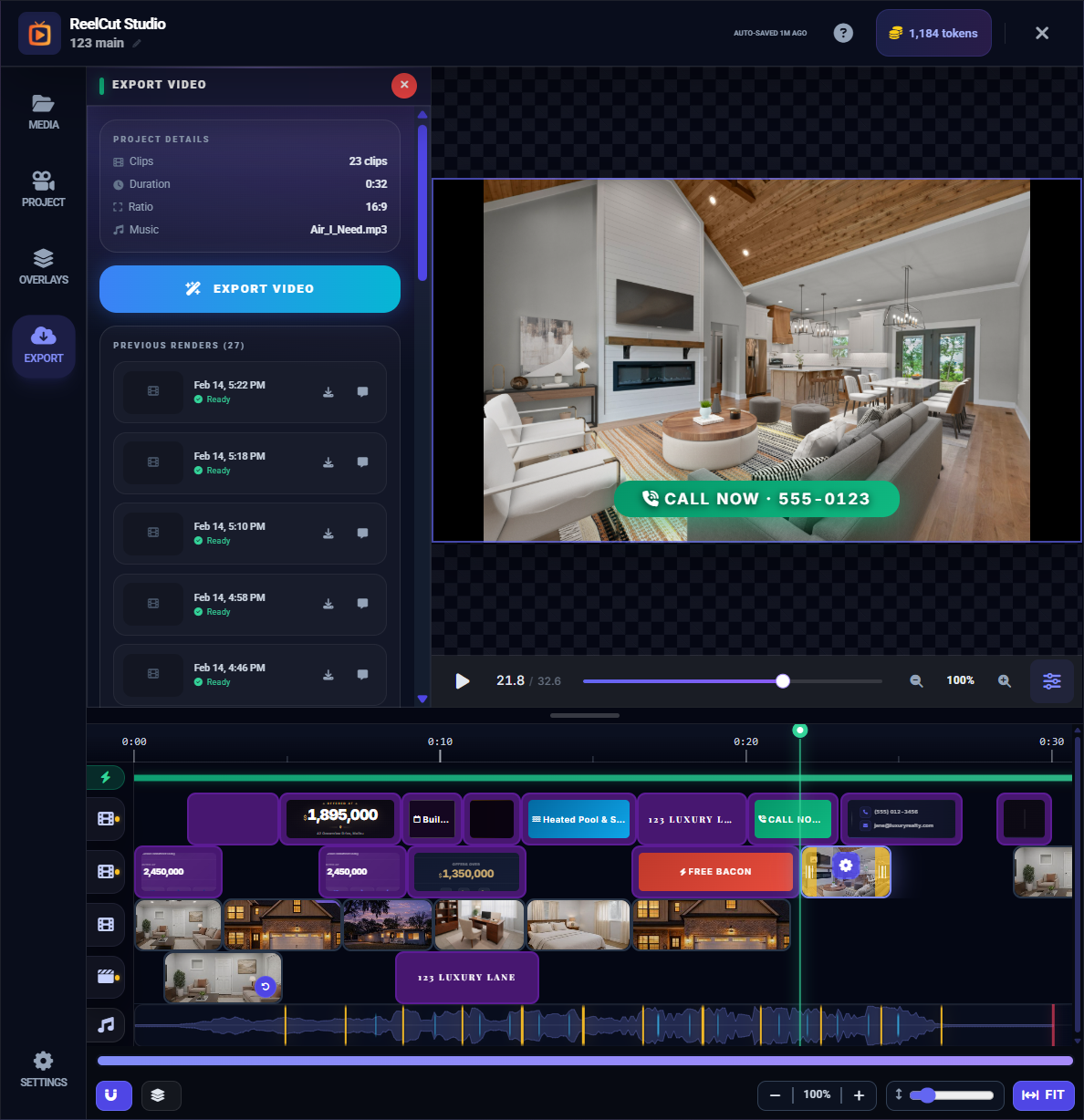
Before You Export
Before you can export, make sure your project is ready:
- All clips must be approved — If any clips are pending review (such as AI-generated videos), you will be prompted to approve them first. Use the "Approve All" button for convenience.
- No missing media — Replace or remove any clips that show a "Media removed" placeholder.
- At least one clip — Your timeline needs at least one video or photo clip to export.
Choosing Formats
At the top of the Export panel, pick which versions to render:
- Horizontal (16:9) — for YouTube, your website and the MLS
- Vertical (9:16) — for Reels, Stories and TikTok
Select one or both. Each format shows its clip count and length. If your project doesn't have a vertical version yet, tap Create vertical version to make one on the Project tab.
Choosing formats never changes what you're editing. To edit the other version, use the Switch to Vertical (or Switch to Horizontal) button under the formats.
Starting the Export
- Open the Export panel from the left sidebar
- Pick Horizontal, Vertical or both
- Tap Export Horizontal, Export Vertical or Export Both
- Each format gets its own progress bar. When you export both, the second one shows Queued until the first finishes
- You can cancel one format, or cancel all
When It's Done
Each finished video appears as a tile you can tap to watch full screen. Tap Share to go to the Sharing tab. If a format didn't finish, tap Try again on that format only.
Your Exports
Below the Export card, every export is listed under Horizontal and Vertical, newest first. The newest one is marked Latest and is what gets shared by default. Tap the star on an older version to make it Your Pick instead.
Open the ⋮ menu on any export to:
- Text a client — send the video link to a phone number
- Download — save the video to your device
- Share to social — post it to your connected accounts
- Rename or Add a note — keep track of which version is which
- Delete — remove an export you no longer need
Token Cost
Exporting doesn't use tokens. You can export as many versions as you need.