
Where to Find It
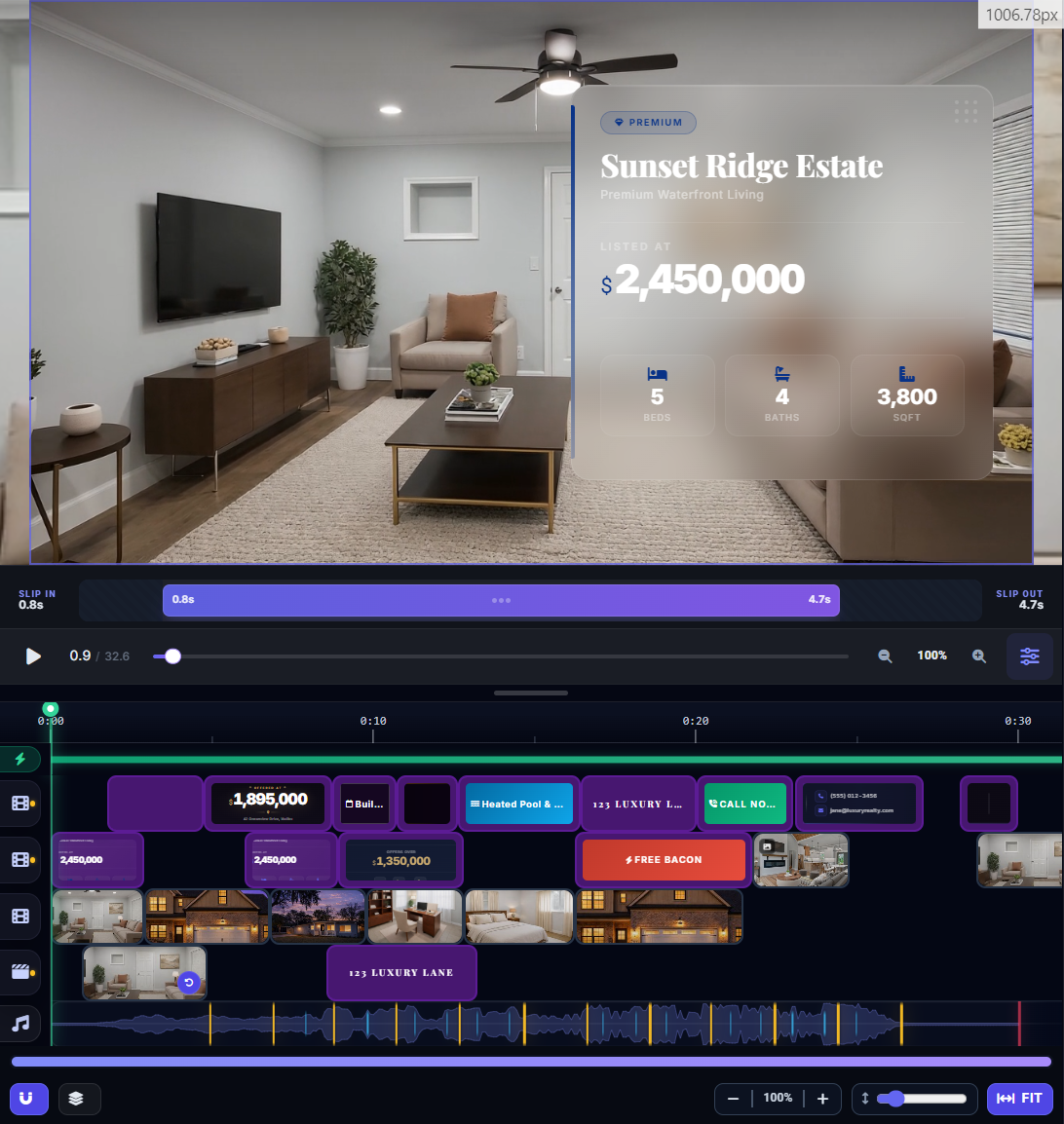
The playback controls are located below the Preview Area in the center of the editor. The preview area itself is the large video display at the top.
Play and Pause
Click the Play button (triangle icon) to start playing your video from the current playhead position. Click it again (now a pause icon) to stop. The preview area shows your video with all clips, overlays, and music combined.
Scrubbing
Scrubbing means dragging the playhead along the timeline to manually move through your video. This lets you jump to any moment quickly without waiting for playback. Simply click and drag the playhead left or right.
Time Display
Next to the play button, you will see the current time — this shows exactly where you are in the video (for example, 00:12.5 means 12 and a half seconds in).
Playback Settings

Click the gear icon near the playback controls to open the settings dropdown:
- Mute — Toggle audio on or off during preview. Useful when editing in a quiet environment.
- Loop — When enabled, the video automatically restarts from the beginning when it reaches the end. This is on by default so you can watch your montage on repeat.
- Clip Loop — Instead of looping the whole video, this loops only the currently selected clip. Handy when you are fine-tuning a single clip's trim points.
- Auto-play — When enabled, playback starts automatically whenever you switch to a different clip. Saves you from clicking play each time.
Rolling Preview Render
The editor works in the background to render a preview of your final video. This means it is combining your clips, applying effects, and producing a watchable preview in real time.
- The Render Bar at the top of the timeline shows progress: blue sections are fully rendered, gray sections are still processing
- You can only play back sections that have been rendered
- Preview quality automatically adjusts based on your device — lower quality on phones for faster rendering, higher on desktop
Auto-Zoom
When Auto-zoom is enabled in the timeline settings, the timeline automatically adjusts its zoom level to fit all your content on screen whenever the layout changes (like adding or removing clips). This keeps you from having to manually zoom out to see everything.