
Where to Find It
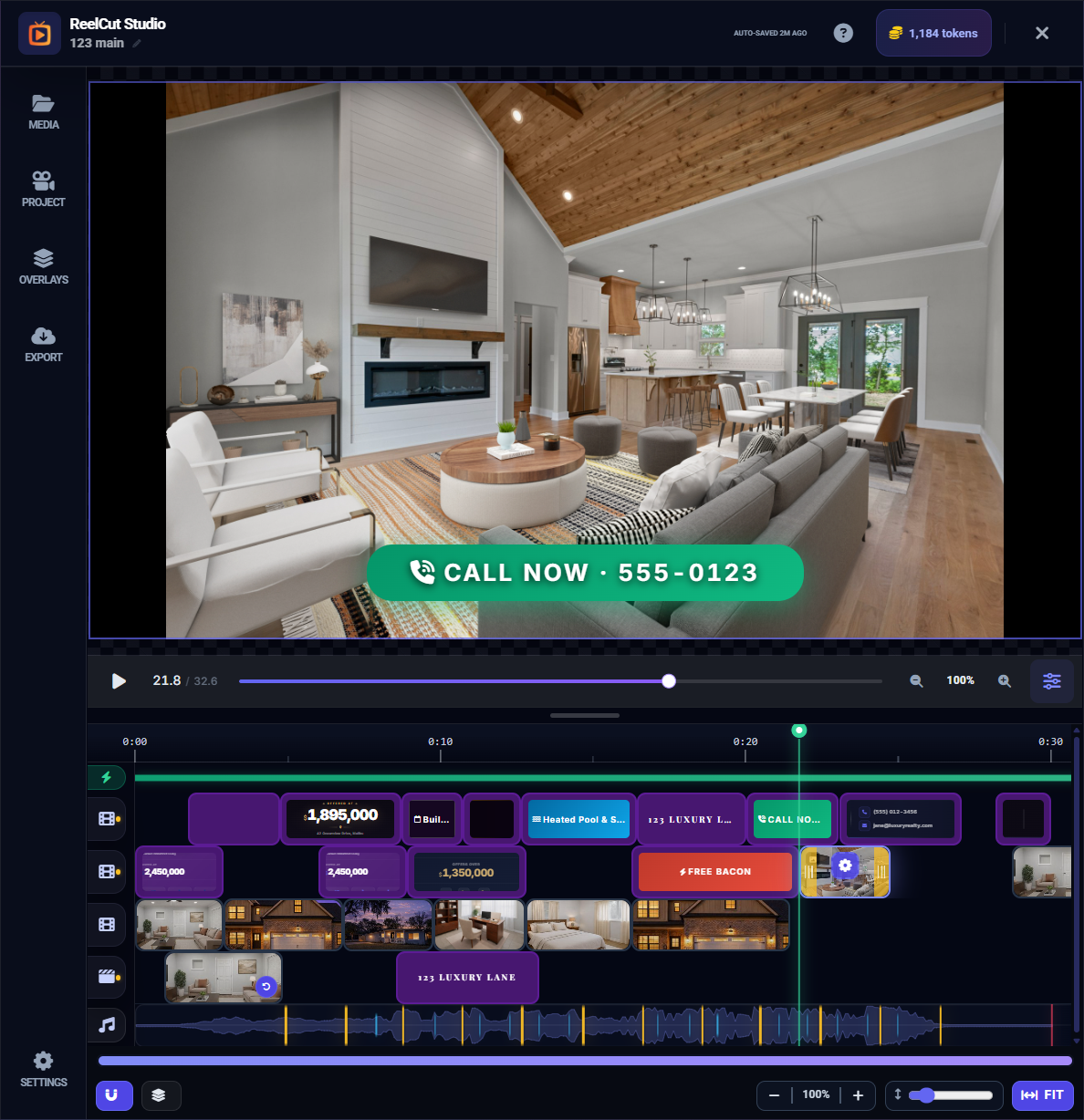
The Timeline is the horizontal workspace at the bottom of the editor. It is always visible and is where you arrange and organize all your content.
What Is the Timeline?
Think of the timeline as a visual storyboard laid out from left to right. Time flows from left (the beginning of your video) to right (the end). Everything you see on the timeline — clips, music, overlays — plays in order from left to right when you hit play.
Understanding Tracks
Tracks are the horizontal rows that hold your content. Each track type holds a different kind of media:
- Visual Tracks (V1, V2, V3...) — Hold your video clips and photos. V1 is the primary track. Additional tracks let you layer content.
- Audio Tracks (A1, A2...) — Hold background music and audio clips. The waveform shows you the shape of the sound.
- Overlay Tracks (OV1, OV2, OV3) — Hold text overlays, image overlays, and title cards that appear on top of your video.

The track icons on the left panel show you which type each track is at a glance.
The Playhead
The Playhead is the vertical line running from top to bottom of the timeline. It marks the current playback position — whatever the playhead is on is what you see in the preview area.
- Drag the playhead left or right to scrub through your video
- Click anywhere on the time ruler to jump the playhead to that moment
The Time Ruler
The Time Ruler runs along the top of the timeline and shows time codes (like 00:05, 00:10, etc.). Click any point on the ruler to jump directly to that moment in your video.
Zoom Controls

In the timeline control bar you will find zoom tools:
- Zoom In (+) — See more detail on a smaller section of time
- Zoom Out (-) — See more of your video at once, with less detail
- Fit Button — Automatically zooms to fit your entire video on screen
Snap Toggle
The Snap toggle (magnet icon) in the control bar turns snapping on or off:
- On — Clips magnetically snap to nearby edges, beat markers, and the playhead as you drag them. This helps with precise alignment.
- Off — Clips move freely without snapping, giving you complete manual control.
Scrolling and Navigating
- Mouse wheel — Scroll the timeline horizontally to see different parts of your video
- Pinch gesture (touch devices) — Zoom the timeline in or out
- Swipe (touch devices) — Scroll through the timeline
The Render Bar
Above the tracks, you will notice a thin bar. This is the Render Bar — it shows which sections of your video have been pre-rendered for smooth preview playback. Blue sections are ready to play; gray sections are still processing.