
Where to Find It
Click the folder icon in the left sidebar to open the Media Library. On mobile, tap the film strip icon in the bottom navigation bar.
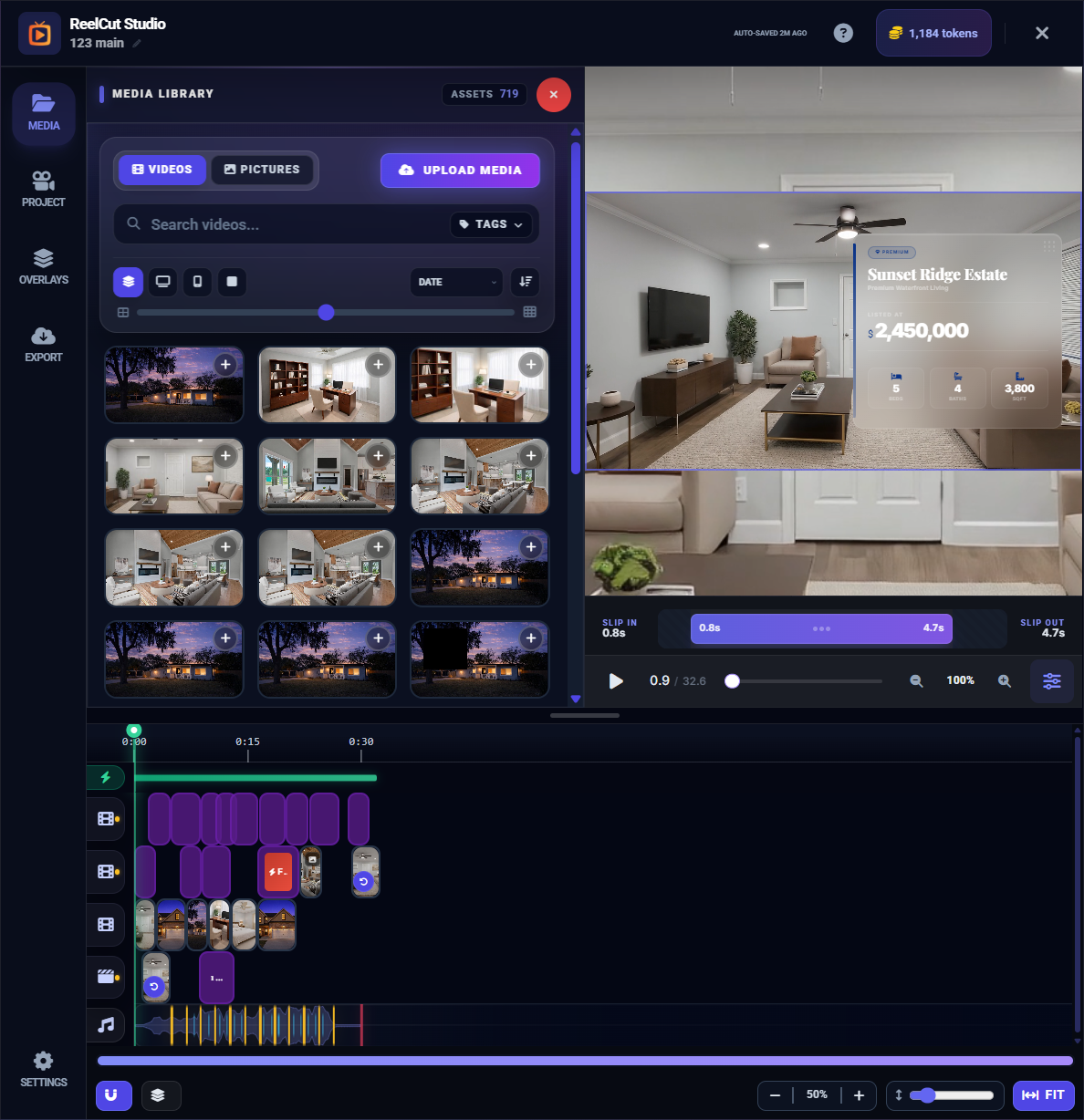
Browsing Your Media
The Media Library shows all the videos and photos you have uploaded to your ReelVids account. Each file appears as a thumbnail preview so you can quickly identify your content.
- Videos show a thumbnail from the first frame
- Photos show the image itself
- Scroll through the list to find the media you want to use
Filtering and Searching
At the top of the Media Library, you can:
- Filter by type — switch between showing all media, videos only, or photos only
- Search by name — type in the search box to find a specific file by its name
Tip: Use the filter buttons to narrow down your media when you have a large library. Searching by name is the fastest way to find a specific file.
Adding Clips to the Timeline
There are several ways to add media to your video:
Click to Add
Drag and Drop
Adding Multiple Clips
Missing Media
If a file referenced by your project has been deleted from your account, you will see a "Media removed" placeholder in the timeline instead of the actual clip. You can:
- Replace it with a different video or photo
- Remove it from the timeline entirely
When you open a project with missing media, an alert will list all the missing items so you know what needs attention.
Note: The Media Library only shows files from your ReelVids account. To use new media, upload it through the ReelVids dashboard first, then return to the editor.