
Where to Find It
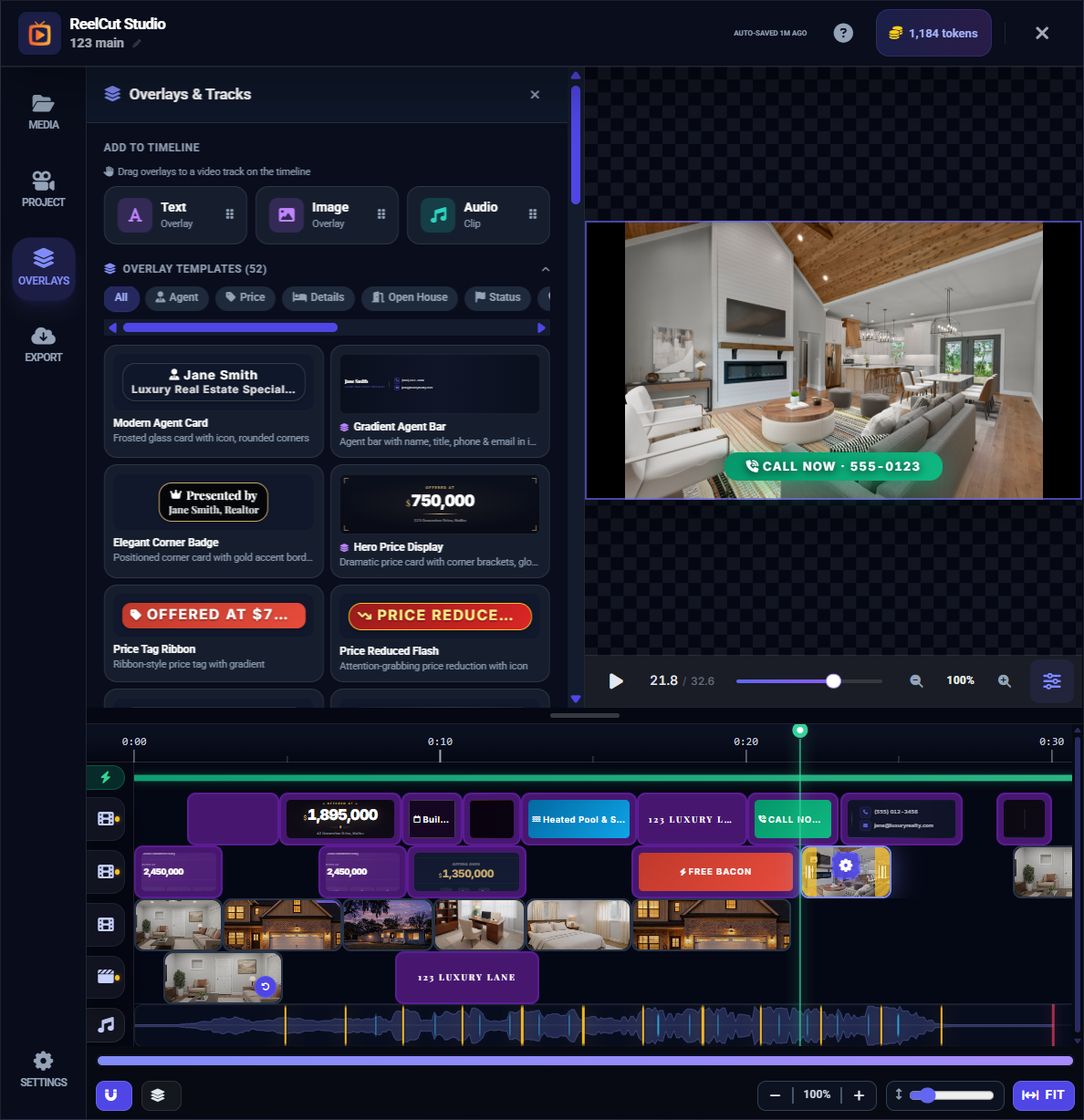
Click the layers icon in the left sidebar to open the Overlays panel. On mobile, look for the layers icon in the bottom navigation bar.
What Are Overlays?
Overlays are layers that appear on top of your video — think of them as stickers, labels, or captions floating above your footage. They do not replace your video; they are displayed over it.
Types of Overlays
Text Overlays
- Property address or listing details
- Agent name and contact information
- "For Sale" or "Just Listed" banners
- Call-to-action text like "Schedule a Tour"
Image Overlays
- Your brokerage logo or watermark
- Branding graphics
- Social media icons or QR codes
Title Cards
- Opening title slides with the property address
- Closing cards with your contact information
- Section dividers between different rooms or areas
Adding an Overlay
- Open the Overlays panel from the left sidebar
- Click the Add button
- Choose the overlay type (text, image, or title card)
- The overlay appears on the timeline in an Overlay Track (OV1, OV2, or OV3)
- Configure its settings in the panel that appears
Overlay Settings
When you select an overlay on the timeline, its settings panel opens:
- Position — Where on the screen the overlay appears. Drag it directly in the preview area to reposition.
- Duration — How long the overlay stays on screen. Drag the edges on the timeline to adjust.
- Start Time — When the overlay first appears. Move it along the timeline to change the timing.
- Style Options — For text: font, size, and color. For images: scale and opacity.
Overlay Tracks
Overlays live on dedicated OV tracks in the timeline, separate from your video and audio tracks. This keeps them organized and easy to manage.
- OV1 is the first overlay track
- OV2 and OV3 provide additional layers
- Overlays on higher tracks appear on top of overlays on lower tracks (like stacking papers — the top one covers what is beneath)
Deleting an Overlay
Select the overlay on the timeline and press Delete or Backspace. You can also right-click and choose Remove.
Tip: Use image overlays for your brokerage logo as a watermark that appears throughout the entire video. Set its duration to match the full length of your montage.