
Where to Find It
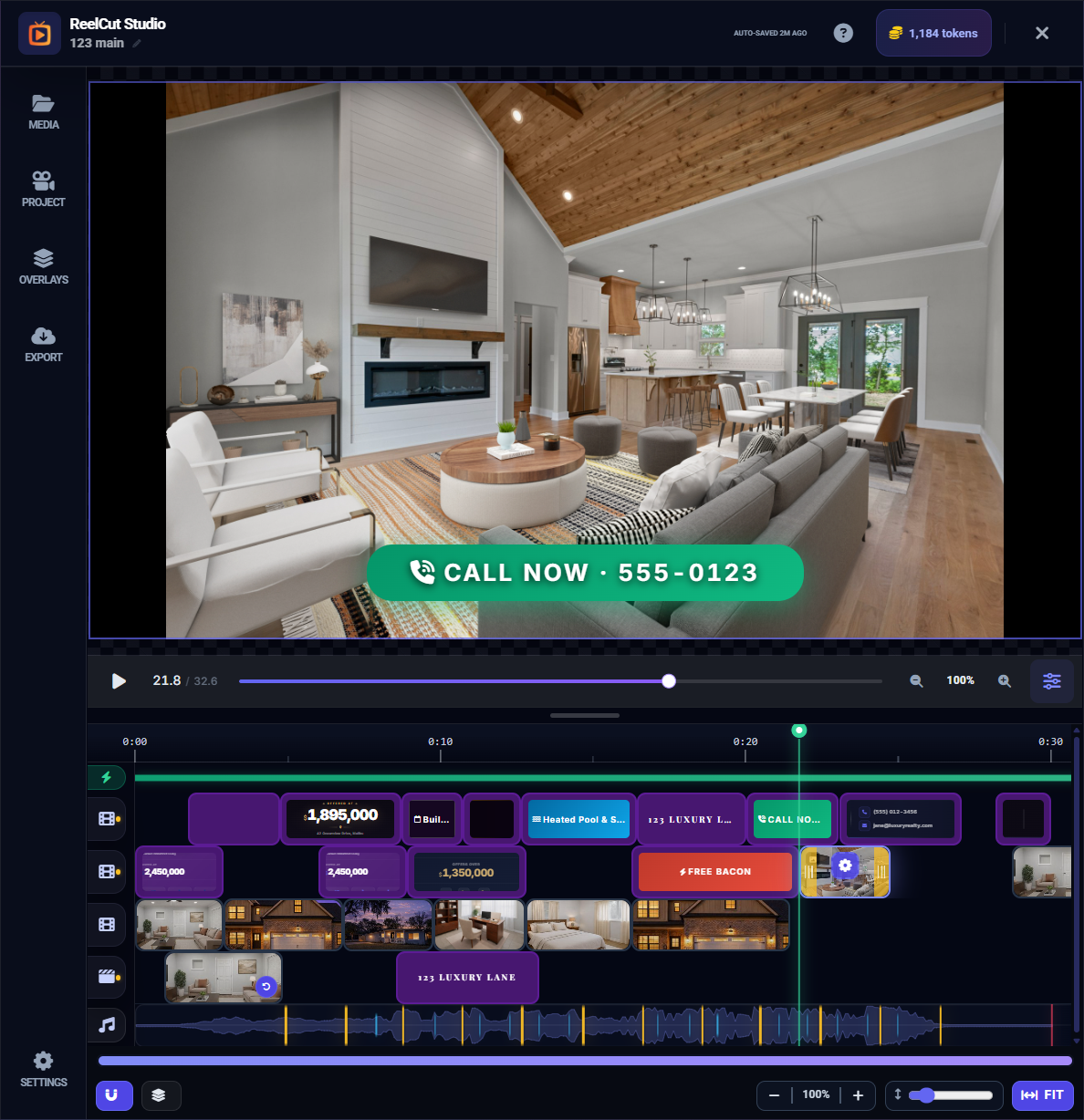
Look for the music note icon in the sidebar or timeline controls to access music features. Background music lives on the Audio Tracks (A1, A2) in the timeline.
Adding Background Music
- Click the music controls or look for the Add Music option
- The Music Picker opens — a window showing the available song library
- Browse the list of songs by name
- Click the play icon next to any song to preview it before selecting
- Each song shows its duration and a visual waveform
- Click a song to select it, then confirm your choice
- The music appears as a clip on an audio track in the timeline
The Waveform Display
Once music is added, the audio track displays a waveform — a visual representation of the sound. The peaks (tall bumps) show louder parts and the valleys (short sections) show quieter moments. This helps you see the rhythm and energy of the music at a glance.
Beat Markers
When music with a detectable tempo is added, vertical beat marker lines appear on the timeline showing where each musical beat falls. These markers are used for syncing your clips to the rhythm.
Tempo Sync
Tempo Sync is one of ReelCut Studio's most powerful features. It automatically adjusts your clip durations to match the beat of your background music, creating a professional, rhythmic montage.
How to Use Tempo Sync
- Add background music to your project
- Look for the Tempo Sync toggle in the timeline controls
- Enable it for the track you want to sync
- Your clips automatically adjust to align with the beats
Sync Variants
Tempo Sync offers three different strategies (v1, v2, v3) for matching clips to beats. Each creates a slightly different rhythm pattern. Click the variant button to cycle through them and find the best fit for your montage.
Snap to Beats
The Snap to Beats button aligns all clips on a track to the nearest beat positions. This is a quick way to get everything in rhythm without manual adjustments.
Audio Clip Settings
When you select an audio clip on the timeline, you can adjust:
- Volume — How loud the music plays
- Start Time — When in the timeline the music begins
- Duration — How long the music plays
Removing Music
To remove background music, select the audio clip on the timeline and press Delete or Backspace. A confirmation dialog will appear.